 Ali PDF Editor
How to reorder, delete and insert PDF pages
Putting a PDF in order is a small job that should stay small: move the signature page to the end, drop the blank pages a scanner added, slip three appendix pages in after page 5. Ali PDF Editor does all of it in the Pages panel on the left of the window, on your own computer.
Reorder pages
Drag a page up or down in the Pages panel; a blue line shows where it will go. Select several pages first (Cmd/Ctrl-click adds a page, Shift-click selects a range) and they move together. The Pages menu also has Move Selected Pages Up, Down, to Start and to End, and right-clicking a page offers the same.
Delete pages
Select the pages and click Delete above the panel, press Delete, or right-click a page. A document always keeps at least one page.
Insert pages
- + Blank adds an empty page the size of its neighbour, after the selected page. Right-click a page to put one before it instead.
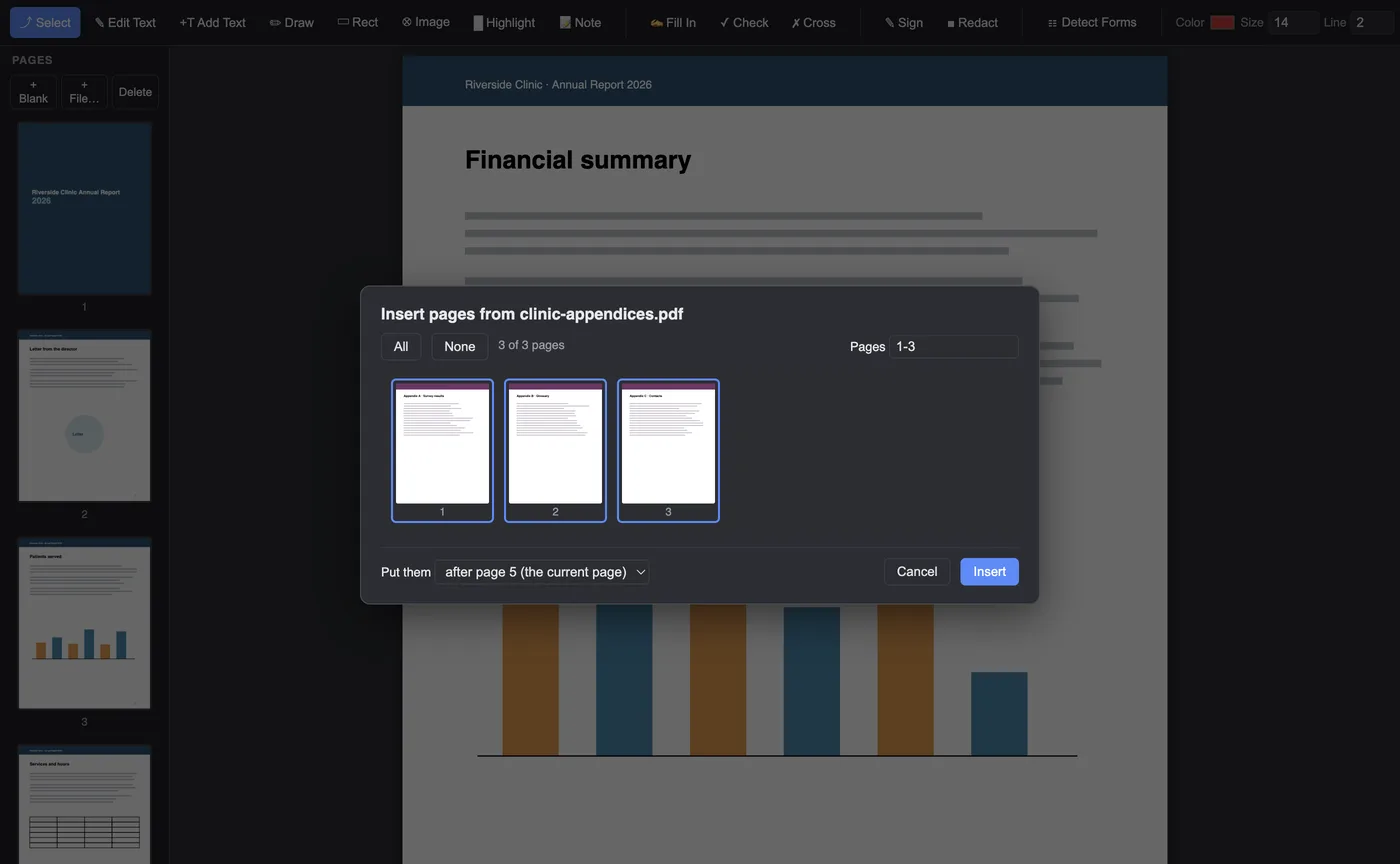
- + File… brings in pages from another PDF. A window shows that file’s pages: all are chosen at first; click pages to leave them out, or type a list such as 1, 3-5. Choose where they go and click Insert. A password-protected file asks for its password.
Safe to experiment
Undo (Cmd/Ctrl+Z) takes back any page change, and nothing reaches the file until you save. Text, signatures and fields you placed stay on their pages when other pages are moved, deleted or inserted, and the form fields of inserted pages come along with them.
Questions
Can I combine two PDFs into one?
Yes. Open the first, then use + File… in the Pages panel to insert all or some pages of the second, wherever you want them.
Can I undo a deleted page?
Yes, with Undo, as long as you have not saved. After saving, the page is gone from that file.
Do I need to upload the PDF?
No. Pages are rearranged on your own computer.
Try it on your own forms. The download is the full app, free for seven days, no card. Then $8.99 once, for life, on up to three computers.
Download for Mac or Windows